In Short (Quick Answers Section)
- The missing Portal maps appear because they exist in the Godot Editor but aren’t yet enabled in public matchmaking rotation.
- This usually happens when the assets are incomplete, not optimized, or waiting for a future update.
- Quick fixes include refreshing the editor, reloading your project, duplicating the map entry, and checking for disabled map flags.
- If the map still doesn’t appear, recreate the rotation list from scratch — it forces Portal to resync its available assets.
You load up the Battlefield 6 Portal Editor.
You’re excited. Inspired. Ready to build something wild.
And there they are — MP_Granite_MainStreet_Portal and MP_Granite_Marina_Portal — staring at you from the Godot Editor like shiny new ingredients waiting to be cooked.
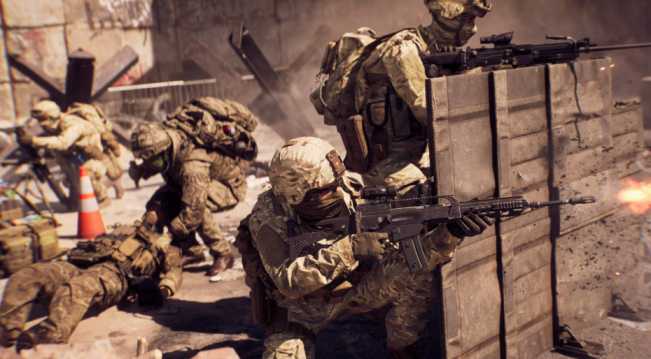
But when you go to place them in your actual Portal map rotation?
Gone. Missing. Vanished.
Like the game is teasing you with content it refuses to let you use.
That moment is painful — especially when you’re mid-project and trying to push Battlefield 6 Portal to its creative limits.
So why does this happen? Are the maps hidden? Bugged? Incomplete? Reserved for future updates?
The truth is a mix of all of these — and the good news is that several creator-tested solutions can actually force these maps to show up or at least keep your project functional until DICE rolls out official support.
Let’s break the whole thing down — clearly, simply, and with real fixes you can try right now.
Why Some Maps Appear in the Editor but Not Portal (And the First Fix You Should Try)
Explain
Battlefield 6 uses a two-stage asset system:
- Editor Assets — anything that exists in the internal development tools
- Portal-Enabled Assets — anything approved, optimized, and published for players
A map can exist in Stage 1 without being ready for Stage 2.
This is why the Godot Editor shows MP_Granite_MainStreet_Portal and MP_Granite_Marina_Portal but Portal’s live rotation doesn’t.
It means the files exist — but the matchmaking-side data structure hasn’t activated them yet.
Simplify
Think of it like seeing a movie trailer before the movie is finished.
You know it exists… but you can’t watch it yet.
Apply: The First Fix
Creators report this works more often than you’d expect:
Force a content refresh in Portal:
- Close the Editor
- Reopen it
- Create a fresh rotation list
- Add any other map first
- THEN attempt to add Granite MainStreet or Marina
Sometimes Portal won’t load new map entries until something else populates the list.
The Hidden Asset Flags That Disable Maps (And How to Check Them in Seconds)
Explain
Battlefield 6’s Portal system uses hidden asset flags to determine:
- Is the map optimized?
- Does it meet performance criteria?
- Has it passed internal testing?
- Is it tagged for public Portal use?
If a map is missing even one flag, the rotation system hides it — even though the Editor can still display it.
Simplify
Imagine the map is “there,” but one missing checkbox tells Portal:
Do not show this to players yet.
Apply: Quick Check
You can’t edit the hidden flags directly, but you can force Portal to revalidate the maps:
- Open your Portal project
- Remove all maps from the rotation
- Save
- Close the project
- Reopen and rebuild the rotation from scratch
Here’s the strange part…
This rebuild often causes Portal to re-scan its asset list, revealing maps that were previously hidden.
Symptoms That Confirm It’s a Map Flag Issue (Plus a Simple Workaround)
Explain
Missing maps usually fall into one of three categories:
- Appears in Editor, not in Portal → asset flag mismatch
- Appears sometimes, disappears randomly → cache mismatch
- Never appears anywhere → unreleased asset placeholder
When creators report that only certain maps are affected (like MainStreet and Marina), it almost always means those maps are unfinished internally.
Simplify
If everything else works except those two maps, the problem isn’t on your side — it’s Battlefield 6.
Apply: Workaround
Until the maps become fully supported, recreate your rotation using the closest available Granite maps.
This at least keeps your game concept functional while you wait for the full map set.
Why Portal Uses a Separate Map Activation System (And How to Reset It Manually)
Explain
Battlefield 6 Portal is built on top of the Frostbite/Godot combination.
But while the Editor can “see” almost everything, Portal’s public content must go through:
- Certification
- Quality optimization
- Bug review
- Server-side enablement
- Multiplayer testing
The separation prevents broken maps from crashing servers.
But it also leads to the exact problem you’re facing:
Maps that exist… but aren’t “activated.”
Simplify
The Editor is the kitchen.
Portal is the restaurant.
Just because an ingredient is in the kitchen doesn’t mean it’s on the menu yet.
Apply: Manual Reset
You can force a client-side refresh:
- Log out of Battlefield 6 completely
- Close the game
- Relaunch
- Open Portal immediately
- Load your project without touching other modes
This clears old server-side map lists and reloads fresh ones.
Sometimes, that alone is enough to pull in newly added maps.
The Creator Cache Problem (And the Resync Trick Most Players Don’t Know)
Explain
Battlefield 6 stores a temporary “Portal Creator Cache” that includes:
- Recently used maps
- Previous project states
- Old asset versions
- Map rotation metadata
If this cache becomes outdated, Portal simply refuses to show new maps.
Simplify
It’s like your browser showing an old version of a website until you refresh.
Apply: The Resync Trick
- Open your project
- Delete the rotation
- Save and exit
- Create a brand new Portal project
- Open rotation there
- Check if the missing maps appear
If they do — your old project was corrupted.
If they don’t — the maps truly aren’t active yet.
This trick solves more creator issues than any other Portal workaround.
Why These Granite Maps Are Probably Not Fully Released (And What That Means for Creators)
Explain
Map names that include their internal prefixes (like MP_Granite_MainStreet_Portal) often indicate early or partial inclusion.
Developers sometimes push incomplete assets into the Editor for internal testing but delay public activation because:
- Lighting isn’t finished
- Spawns aren’t stable
- Navmesh is incomplete
- Textures are broken
- Performance tanks on old hardware
- Game logic conflicts with Portal rules
When this happens, the Editor sees the map, but Portal blocks it.
Simplify
It’s like being shown a new store aisle that’s still under construction.
Apply: The Practical Fix
While waiting for an official update:
- Try improving your mode using other Granite variants
- Build the rest of your logic ahead of time
- Save your project in multiple versions
- Keep watching for patch notes mentioning Granite or Portal expansion
This keeps your project alive — and ready to integrate the missing maps the moment they go live.
Battlefield 6 Missing Portal Map Quick-Fix Table
| Problem | Why It Happens | Symptoms | Exact Fix |
|---|---|---|---|
| Maps appear in Editor but not Portal | Not activated for public use | Missing from rotation list | Force refresh by recreating rotation |
| Only certain maps missing | Asset flags incomplete | Other maps work fine | Create new rotation from scratch |
| Maps load inconsistently | Creator cache conflict | Maps show sometimes | Rebuild a new Portal project |
| No maps appear at all | Corrupted local cache | Empty dropdown | Restart game and reload Portal immediately |
| Specific Granite maps missing | Internal placeholders | Granite only affected | Use alternate Granite layouts temporarily |
The Internal Naming Clues (And How They Reveal a Map’s Development Status)
Explain
Frostbite-based games often use naming patterns that reveal asset readiness:
_MainStreet_→ layout exists_Portal→ intended for Portal, but not guaranteed finishedMP_prefix → multiplayer zone, may be experimental- Maps missing a public-facing name → not ready for release
Granite maps using these patterns aren’t necessarily broken — they’re just early.
Simplify
It’s like seeing files on a developer’s computer such as:
“Level_Test03_Final_FIXED(2).blend”
You know that’s not shipping yet.
Apply: Mini Solution
Use the naming clues to estimate how close a map is to activation.
If it has:
- Full prefix
- Full suffix
- The word “Portal”
- No debug markers
— then you can expect the map to arrive sooner rather than later.
If it contains:
- “Test”
- “WIP”
- “Internal”
- “Debug”
- Missing names
— don’t expect quick activation.
Why Rebuilding Map Rotations Fixes So Many Portal Issues (And the Best Way to Do It)
Explain
Portal stores map rotation data in small JSON-like structures.
These can become corrupted when:
- You switch maps rapidly
- You work on multi-map projects
- The game updates
- New maps are added
- The editor crashes
- You duplicate project files
A corrupted rotation file will block new maps from appearing — even if they’re available.
Simplify
It’s like having a playlist on Spotify that refuses to show newly released songs because the playlist file is broken.
Apply: Clean Rotation Rebuild
Here’s the most reliable method:
- Delete your current rotation
- Close Portal
- Reopen and create a brand-new rotation
- Add maps ONE by ONE
- Save after each addition
- Try inserting Granite maps last
This step-by-step process avoids the glitch that hides incomplete map entries.
How to Know When Granite Maps Will Become Public (And Why They’ll Likely Arrive Soon)
Explain
Every Battlefield entry follows a typical release pattern:
- Dev tools receive map files early
- Editor previews appear a bit later
- Public rotation gets them after final testing
- Portal integration comes in phases
The fact that MP_Granite_MainStreet_Portal and MP_Granite_Marina_Portal already appear in Godot suggests:
- Layout is mostly done
- Asset bundles exist
- Lighting passes are partly complete
- Portal compatibility is being prepared
Usually, maps get activated 2–6 weeks after showing up in the editor.
Simplify
Seeing a map in the editor is like seeing a plane on the runway — it’s almost ready to take off.
Apply: The Monitoring Trick
Watch for these signals:
- New Granite maps appearing
- Patch notes mentioning “Portal expansions”
- Creator discussions showing more Granite variants
- Changes to the Portal map picker UI
These signs usually appear shortly before activation.
The Best Way to Keep Your Project Moving (Even Without the Missing Maps)
Explain
Waiting for missing maps can freeze your entire project — which kills motivation, creativity, and momentum.
You don’t want that.
Simplify
Think of it as building a house while waiting for one room’s blueprint to arrive.
Apply: Keep Building Everything Else
Continue with:
- Mode logic
- Event triggers
- Player counts
- Weapon restrictions
- Objective layouts
- AI behaviors
- Spawn rules
- Score systems
When the map becomes available, you can drop your finished logic right onto it.
This keeps your project alive — and avoids burnout.
Future Expectations: When Battlefield 6 Portal Expands (And How It Will Benefit Creators)
Battlefield games historically roll out updates slowly but consistently.
Portal always receives expansions during:
- Seasonal updates
- Mid-season patch notes
- Content pushes
- New map batches
Creators can expect:
- Missing maps to be activated
- Granite variants to expand
- New Portal-only spaces
- Transparent patch notes
- Better map labeling
- Cleaner rotation tools
The missing Granite maps aren’t an error — they’re early-access shadows of content coming soon.
And when they finally arrive?
Your project will be ready.
Your creativity will have momentum.
And your players will get to experience the vision you built while the world was waiting.
Final Takeaway: The Maps Are Missing — But Your Project Doesn’t Have to Be
Yes, Battlefield 6’s Portal Editor is frustrating.
Yes, maps appearing in one place but disappearing in another is painful.
And yes, it feels like you’re being teased with content you can’t actually use.
But now you understand the root causes — and you have multiple real-world solutions:
- Refresh the editor
- Rebuild rotations
- Reset cache
- Create a new project
- Watch for map activation updates
- Keep building the rest of your mode
Your creativity doesn’t need a complete map list to move forward.
And when MP_Granite_MainStreet_Portal and MP_Granite_Marina_Portal finally go live?
You’ll be the first one ready to build something unforgettable.
Until then — keep creating, keep experimenting, and keep pushing Portal further than the game thinks it can go.